You activated your Starlink Roam 100GB plan, mounted the dish on your RV, and finally have real internet on the road. Then two weeks in, you check the Starlink app and discover you have already burned through 78 GB. You have half a billing cycle left and no way to buy more data.
Starlink RV data usage is the total download and upload volume your Starlink dish processes each billing cycle. This is the most common frustration RV owners report with their Roam plan. The 100GB Roam plan is the most affordable mobile option at $55 per month, but 100 GB disappears fast when you do not know where it is going. The good news: once you understand exactly what eats your data and set up the right controls, most RV users can live comfortably within 100 GB — or make a confident decision to upgrade.
How the Starlink data cap RV plans enforce works
Starlink offers three mobile plans for RV users. The Roam 100GB plan costs $55 per month and includes 100 GB of full-speed data. The Roam 300GB plan costs $80 per month with 300 GB of full-speed data. The Roam Unlimited plan costs $175 per month with no data cap. You can compare Starlink RV plans in detail in our dedicated guide.
The 100GB plan uses a soft cap, not a hard cutoff. After you use 100 GB in a billing cycle, Starlink does not shut off your internet. Instead, you drop to what Starlink calls basic access, under 1 Mbps, until your billing cycle resets. That is enough for email, basic web browsing, and messaging — but not enough for video streaming, video calls, or large downloads.
There are a few important details most guides miss:
- No top-up option. You cannot buy an extra 10 or 20 GB. Once you hit the cap, your choices are basic-access speeds or upgrading to Roam 300GB ($80) or Roam Unlimited ($175).
- Starlink firmware updates do not count against your data cap. The dish updates itself without eating your allowance.
- Starlink uses more data than cellular for the same activities. Cellular carriers compress video and images on their networks before they reach your device. Starlink does not. According to user testing on the Starlink subreddit, a YouTube video that uses 1.5 GB on cellular might use 2-3 GB on Starlink.
- Your billing cycle resets monthly from your activation date, not the first of the month. Check the Starlink app to see your exact reset date.
The bottom line: 100 GB is workable for one or two people doing moderate browsing, some streaming at reduced quality, and occasional video calls. It requires active management. If you are a household of four streaming every night, Unlimited is the realistic choice.
How much data does Starlink use RV owners should expect
Knowing the per-activity numbers turns data management from guesswork into math. Here is what each common RV activity costs per hour, based on real-world testing and Starlink user reports:
| Activity | Data per hour | Notes |
|---|---|---|
| Email and web browsing | 50-150 MB | Text-heavy sites on the low end, image-heavy on the high end |
| Social media scrolling | 200-500 MB | Video-heavy feeds (TikTok, Instagram Reels) hit the high end |
| Music streaming | 40-150 MB | Spotify "Normal" quality: ~40 MB. "Very High": ~150 MB |
| SD video streaming (480p) | ~1 GB | Watchable on tablets and phones |
| HD video streaming (720p) | ~2-3 GB | Default quality on most streaming services |
| 4K video streaming | ~7-8 GB | Avoid this entirely on the 100GB plan |
| Zoom/Teams 1-on-1 (720p) | ~1.08 GB | SD drops to ~540 MB. Audio-only: 27-36 MB |
| Zoom/Teams group call (HD) | ~1.35-2.5 GB | More participants means more data |
| Online gaming (gameplay) | 40-150 MB | The gameplay itself is light |
| Game updates/downloads | 10-50+ GB per update | This is the real killer for gamers |
| Cloud backup (iCloud, Google) | 5-20 GB silently | Runs in the background without warning |
| OS and app updates | 2-5 GB per patch | Windows updates are the worst offenders |
| Speed tests | 100 MB-1 GB each | A single Speedtest.net run can use 500 MB+ |
Read those last three rows again. Cloud backups, OS updates, and speed tests are invisible data killers that never show up in your mental tally of "what I did today." A single Windows update plus a couple of speed tests can burn 5 GB in minutes.
For more context on video call data specifically, see our Zoom video call tips guide.
The hidden data drains killing your allowance
Most RV owners track the obvious stuff — streaming hours, video calls — and still wonder where their data went. These background processes are almost always the culprit, and learning to reduce Starlink data usage starts with stopping them.
Cloud backups and photo sync
Every smartphone backs up photos and data to the cloud by default. iCloud, Google Photos, Google Drive, OneDrive, and Dropbox all sync automatically when they detect a WiFi connection. Your phone does not know the difference between your home fiber and a 100GB Starlink plan. Two phones syncing a week of vacation photos can consume 5-10 GB overnight, according to Apple and Google support documentation.
Fix: Set your Starlink WiFi as a "metered connection" on every device. This is the single most impactful change you can make. On iPhone, go to Settings > WiFi > tap the network > Low Data Mode. On Android, go to Settings > Network > WiFi > tap the network > Metered.
Operating system and app updates
Windows can download 2-5 GB per cumulative update. macOS updates range from 1-3 GB. App updates on phones add another 500 MB-2 GB per week. All of this happens automatically on WiFi.
Fix: On Windows, go to Settings > Network & Internet > WiFi > your network > Metered connection: On. On Mac, disable automatic updates in System Settings > Software Update. On phones, disable automatic app updates in the App Store and Google Play settings.
Smart TV and streaming device background activity
Smart TVs and streaming sticks phone home constantly — downloading thumbnails, pre-caching content, updating firmware, and refreshing their home screens. Based on network monitoring tests, a Fire TV Stick sitting idle on the home screen can use 500 MB-1 GB per day just from background activity.
Fix: Power off streaming devices when not in use. Do not leave them on the home screen. Disable screensavers that pull from the internet.
Speed tests
This one catches everyone. You notice Starlink feels slow, so you run a speed test. That single test pushes 200 MB-1 GB of data through your connection (it has to, that is how it measures speed). Run three tests to "confirm" the results and you have burned up to 3 GB checking whether your internet is working.
Fix: Limit yourself to one speed test per week maximum. Use the Starlink app's built-in speed test, which tends to use less data than third-party tools. Better yet, just try loading a website — if pages load in under 2 seconds, your connection is fine.
VPN overhead
If you run a VPN for work or privacy, the encryption wrapping adds 5-15% to every byte of data that passes through it. On 100 GB of usage, that overhead translates to 5-15 GB of extra data consumed purely by encryption.
Fix: Only enable your VPN when you actually need it — for work, banking, or sensitive browsing. Disable it for streaming, general browsing, and downloads.
Set up a Starlink data budget RV owners can follow
A data budget turns 100 GB from an anxiety source into a manageable resource. This is one of the best Starlink Roam 100GB plan tips we can offer. Here is a realistic monthly budget for two people in an RV:
| Category | Monthly allocation | Daily equivalent |
|---|---|---|
| Web browsing and email (2 hrs/day) | 12 GB | ~400 MB |
| Social media (1 hr/day) | 10 GB | ~333 MB |
| Music streaming (3 hrs/day) | 6 GB | ~200 MB |
| Video streaming at 480p-720p (1 hr/day) | 30 GB | ~1 GB |
| Video calls (3 hrs/week) | 8 GB | ~270 MB |
| Background and overhead buffer | 10 GB | ~333 MB |
| Total | 76 GB | ~2.5 GB/day |
That leaves 24 GB of headroom for unexpected usage, the occasional game update, or a day where you stream an extra movie. In short: at 720p instead of 1080p, streaming drops from the budget buster to manageable.
Weekly check-in: Open the Starlink app every Sunday. Divide your remaining data by the days left in your billing cycle. If you are running ahead of pace, cut streaming quality or skip a day. If you are ahead of budget, enjoy an extra movie night.
Device-by-device settings to reduce Starlink data usage
Every streaming platform has quality controls buried in its settings. Dropping from "Auto" (which defaults to the highest quality your connection supports) to a specific lower quality saves massive amounts of data with minimal visible difference on a tablet or laptop screen.
Streaming platform quick-reference
| Platform | Setting location | Recommended setting | Data savings vs Auto |
|---|---|---|---|
| Netflix | Account > Profile > Playback > Data usage per screen | "Low" (SD) or "Medium" (720p) | 60-80% |
| YouTube | Settings > Video quality preferences > Mobile/WiFi | 480p or 720p | 50-70% |
| Disney+ | App Settings > Wi-Fi Data Usage | "Save Data" | ~65% |
| Amazon Prime | Settings > Stream and Download > Streaming Quality | "Good" (SD) or "Better" (HD) | 50-75% |
| Hulu | Account > Quality > Home | "Data Saver" or "Medium" | 60-70% |
| Apple TV+ | Settings > Apps > TV > WiFi | "Data Saver" | ~65% |
| Spotify | Settings > Audio Quality > WiFi streaming | "Normal" (96 kbps) | ~70% vs "Very High" |
| YouTube Music | Settings > Audio quality > On Wi-Fi | "Low" or "Normal" | ~60% |
The single biggest win: Change Netflix from "Auto" to "Medium." Netflix is the number one data consumer in most RV households, and "Auto" on Starlink means Netflix sees a fast connection and streams at maximum quality — often 1080p or higher. Switching to "Medium" (720p) cuts data use by roughly 60% and looks nearly identical on screens under 32 inches.
Device-specific settings
Fire TV Stick 4K Max:
The Fire TV Stick has a built-in data monitoring feature that most owners never find. Go to Settings > Preferences > Data Monitoring and enable it. Set a monthly data limit and the device will warn you as you approach it.

Amazon Fire TV Stick 4K Max
Streaming
$84.99
Amazon price when we checked on Oct 9, 2026
Check today's price on Amazon(opens Amazon in a new tab)Roku Streaming Stick 4K:
Roku's "Bandwidth Saver" automatically stops streaming after 4 hours of inactivity. Enable it in Settings > Network > Bandwidth Saver. This prevents the all-too-common scenario of falling asleep during a show and waking up to find your Roku streamed 6 more episodes at full quality overnight.
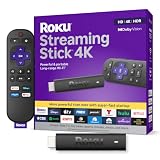
Roku Streaming Stick 4K
Streaming
$44.99
Amazon price when we checked on Oct 9, 2026
Check today's price on Amazon(opens Amazon in a new tab)Starlink data monitoring RV setup with a travel router
The Starlink app shows total household data usage, but it cannot tell you which device is the problem. A travel router between your Starlink dish and your devices gives you per-device data tracking, traffic controls, and the ability to identify exactly where your gigabytes are going.
GL.iNet Flint 2: the data dashboard
The Flint 2 is the best option for stationary or semi-permanent RV setups. Its Data Statistics dashboard shows real-time and historical data usage per connected device. You can see that your partner's laptop used 8 GB yesterday (Windows update) or that the smart TV consumed 3 GB while "idle."
To connect it to Starlink, you will need an Ethernet connection from the dish or Starlink router. The Standard Gen 3 router has two Ethernet ports you can plug straight into. The Mini has one latching Ethernet LAN port, sealed by the Starlink Plug in the box, so Mini owners need the Mini Starlink cable (sold separately) or a standard Ethernet cable, which means the Mini is no longer rated IP67.

GL.iNet GL-MT6000 Flint 2
Travel Router
$169.99
Amazon price when we checked on Oct 9, 2026
Check today's price on Amazon(opens Amazon in a new tab)
EAZUSE Starlink Ethernet Adapter (Gen 3/Mini)
Ethernet Adapter
Waterproof SPX-to-RJ45 adapter for Starlink Gen 3 and Mini, adds a wired Ethernet port without cutting cables.
$26.09
Amazon price when we checked on Oct 9, 2026
Check today's price on Amazon(opens Amazon in a new tab)GL.iNet Slate AX: portable data tracking
If you prefer a compact, portable setup, the Slate AX offers VNStat data tracking in a smaller form factor. It does not have quite the same dashboard as the Flint 2, but it tracks per-device usage and fits in your hand.
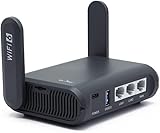
GL.iNet GL-AXT1800 Slate AX
Travel Router
$119.99
Amazon price when we checked on Oct 9, 2026
Check today's price on Amazon(opens Amazon in a new tab)For a full comparison of router options, see our guide to the best travel routers for Starlink.
Cellular offloading with the Puli AX
Here is a strategy most data management guides miss entirely: use a cellular connection for light, always-on traffic and save your Starlink data for bandwidth-heavy tasks.
The GL.iNet Puli AX (GL-XE3000) is a 5G router with dual SIM slots and an Ethernet WAN port, so it can connect to both Starlink (via Ethernet) and a cellular SIM at the same time. Set up policy-based routing so that email, messaging, and basic browsing go through cellular while streaming and video calls use Starlink. A cheap 5 GB cellular plan handles the light stuff, and your 100 GB Starlink allowance stretches much further.
Because the Puli AX has a built-in 6,400mAh battery, it also works as a standalone cellular hotspot. Keep it on for low-data tasks and switch to Starlink when you need real bandwidth.
GL.iNet GL-XE3000 Puli AX 5G Router (dual SIM, 6400mAh)
Mobile Hotspot
A standalone cellular gateway with its own antennas, dual SIM slots and a 6,400mAh battery - it does the job of a mobile hotspot without draining your phone, and adds dual-WAN failover a hotspot cannot.
$390 – $460
Amazon price when we checked on Oct 9, 2026
Check today's price on Amazon(opens Amazon in a new tab)Monitor your usage in the Starlink app
The Starlink app is your primary Starlink data monitoring RV tool and it is free. Here is how to use it effectively for tracking Starlink RV data usage day to day.
Finding your data usage: Open the Starlink app > tap the Usage icon (bar chart). You will see a daily bar chart and a running monthly total. The app shows both download and upload separately.
What to look for:
- Spike days: A single bar significantly taller than the rest usually means an OS update, game download, or cloud backup ran that day
- Upload spikes: Unusual upload data often means cloud backup is syncing photos or files
- Trending pace: Divide your total usage by days elapsed. If you are averaging more than 3.3 GB per day, you will exceed 100 GB before the cycle ends
Setting limits: The Starlink app shows totals, but it cannot break usage down by device or cap an individual device. This is why a travel router with data monitoring is so valuable — you can see which device is the problem and set actual GB limits. Check our Starlink app guide for a full walkthrough of every feature.
Check frequency: Once per week is sufficient for most users. Every Sunday, open the app, check your pace, and adjust your behavior for the coming week. If you are past 75% of your data with less than 25% of the billing cycle remaining, it is time to cut streaming quality and pause non-essential syncing.
When to upgrade from 100GB to Unlimited
The 100GB plan saves $120 per month compared to Unlimited. That is $1,440 per year — real money. And if 100 GB is only slightly too tight, Roam 300GB at $80 per month sits in between and triples your allowance for $25 more. But if you are constantly stressed about data, battling throttled speeds, or spending hours managing settings, the upgrade might be worth your sanity.
Stay on 100GB if:
- You are a solo traveler or couple with moderate internet use
- You can commit to 720p streaming or lower
- You use your phone's cellular plan for social media and casual browsing
- Your monthly usage consistently stays under 80 GB with the techniques in this guide
Upgrade to Unlimited if:
- You work remotely with frequent video calls (8+ hours per week of Zoom or Teams)
- You have kids or multiple heavy users in the RV
- You stream video daily at HD or higher quality
- You rely on cloud-based tools (Google Workspace, Dropbox, creative software)
- You tried managing 100 GB for two months and consistently exceeded it
The math: If data anxiety causes you to limit productive work time or avoid necessary video calls, the $120 monthly difference likely costs you more in lost productivity than you save. But for retirees or travelers who primarily browse, email, and stream occasionally, 100 GB with smart management is plenty.
To see a detailed cost comparison including hardware costs, check our guide to compare Starlink RV plans. And for optimizing your streaming and gaming setup guide, we have a dedicated walkthrough.
Related reading
- Compare Starlink RV plans
- Starlink Roam vs Residential priority and deprioritization in 2026
- Best travel routers for Starlink
- Streaming and gaming setup guide
- Starlink app guide
- Zoom video call tips
What to do next
Open your Starlink app right now and check your current data usage. Divide it by the number of days since your billing cycle started to get your daily average. If that number is above 3.3 GB per day, start with the two highest-impact changes: set every device to "metered connection" mode and drop Netflix to "Medium" quality. Those two steps alone cut most RV owners' data usage by 30-40%. If you want per-device monitoring to find exactly where your data is going, pick up a travel router with data tracking and you will never have to guess again.
Affiliate disclosure
This page may include affiliate links. If you purchase through them, we may earn a commission at no extra cost to you.