What Starlink RV actually delivers for entertainment
Starlink has fundamentally changed what is possible for RV entertainment. Before Starlink, streaming at a remote campsite meant relying on a weak cellular signal or downloading content before you left home. Now you can stream live TV, binge Netflix, and even play cloud games from a mountaintop.
But Starlink is not home fiber. The connection is fast enough for any streaming quality, yet it has characteristics — satellite handoffs, variable speeds, and data caps on cheaper plans — that require some adjustment to your habits and settings.
This guide covers practical setup for streaming video, music, cloud gaming, and multi-device households, with specific attention to data management on the capped Roam 100GB and 300GB plans.
Streaming video on Starlink
Speed requirements by quality
| Video quality | Required bandwidth | Data per hour | Visual experience |
|---|---|---|---|
| 480p (SD) | 3 Mbps | ~0.7 GB | Watchable on phone screens |
| 720p (HD) | 5 Mbps | ~1.5 GB | Good on tablets and small TVs |
| 1080p (Full HD) | 10 Mbps | ~3 GB | Sharp on RV TVs up to 50" |
| 4K (Ultra HD) | 25 Mbps | ~7 GB | Overkill for most RV screens |
Starlink Roam typically delivers 40–220 Mbps — more than enough for any quality. The real constraint is data usage, not speed.
Recommended quality settings by plan
Roam 100GB plan ($55/mo):
- Set all streaming apps to 720p maximum
- The entry Roam tier is now 100 GB for $55/month (up from the old 50 GB at $50)
- At 1.5 GB/hour, you get roughly 66 hours of streaming per month
- Save 4K and 1080p for downloaded content
- Past 100 GB you drop to "basic access" (under 1 Mbps), which will not stream video, until the billing cycle resets
Roam 300GB plan ($80/mo):
- Stream at 1080p for roughly 100 hours per month, or mix 720p and 1080p
- Enough for most couples who stream a couple of hours a night
Roam Unlimited ($175/mo):
- Stream at 1080p freely
- 4K is available but provides minimal visual benefit on typical RV TV sizes (32–43 inches)
- No data management needed
How to set video quality in popular apps
Netflix:
- Go to Account → Profile → Playback Settings
- Set to "Medium" (SD, about 0.7 GB/hr) for data conservation or "High" for best quality
- Avoid "Auto" and "High" on a capped plan, since High streams up to 3 GB/hr in HD and up to 7 GB/hr in 4K
Disney+:
- Go to Profile → App Settings → WiFi Data Usage
- Select "Save Data" for ~0.7 GB/hr or "Moderate" for ~1.5 GB/hr
YouTube:
- Tap your profile → Settings → Video Quality Preferences
- Set "On Wi-Fi" to "Data Saver" or "Higher Picture Quality" based on your plan
Amazon Prime Video:
- Settings → Streaming & Downloading
- Set "Streaming Quality" to "Good" (SD) or "Better" (HD)
Smart downloading strategy
The most data-efficient entertainment approach is to download content when you have unlimited bandwidth and stream only when necessary.
When to download
- Shore power stops: Campgrounds with WiFi or strong cellular — download tomorrow's entertainment tonight
- Town runs: Coffee shops, libraries, and fast-food restaurants with free WiFi
- Before departure: Download several movies and TV show episodes at home before each trip
Download storage tips
- A 128GB tablet holds roughly 60–80 hours of 1080p downloaded content
- Most streaming apps allow downloading for offline viewing on up to 2–4 devices per account
- Download SD quality for shows you are casually watching — visual difference is minimal on a tablet
Apps that support offline downloads
| App | Offline downloads | Quality options | Download limit |
|---|---|---|---|
| Netflix | Yes | SD or HD | 100 titles |
| Disney+ | Yes | SD or HD | Unlimited |
| Amazon Prime | Yes | SD, HD, or UHD | 25 titles |
| YouTube Premium | Yes | 360p to 1080p | 500 videos |
| Spotify | Yes | Normal to Very High | 10,000 songs |
| Apple TV (formerly Apple TV+) | Yes | SD or HD | Unlimited |
Live TV and sports streaming
Live TV is where Starlink earns its value. There is no download-ahead option for live events.
Performance expectations
- Live sports (ESPN+, YouTube TV, Hulu Live): Works well at 720p–1080p. Occasional 1–2 second freezes during satellite handoffs, but they pass quickly. Not meaningfully different from cable.
- Live news: Smooth and reliable. Lower bandwidth requirement than sports.
- Live events (concerts, premieres): Same as sports — works well with brief interruptions.
Tips for live TV
- Close other bandwidth-heavy applications during live viewing
- Set quality to 720p rather than auto — prevents the app from hunting between qualities during speed fluctuations
- If multiple people watch different streams simultaneously, prioritize the live stream and buffer others
Music and podcast streaming
Audio streaming is trivially easy on Starlink. Spotify, Apple Music, YouTube Music, and podcast apps use 40–150 MB per hour — nearly nothing compared to video.
On the Roam 100GB plan, you could stream music 8 hours a day for an entire month and use only 10–35 GB. No quality adjustments needed.
Cloud gaming on Starlink
Cloud gaming streams a video game from a remote server to your device, similar to streaming video but with real-time input requirements. Starlink's latency profile makes this viable for the first time from an RV.
Latency reality check
| Metric | Starlink typical | Cloud gaming requirement | Verdict |
|---|---|---|---|
| Latency | 20–60 ms | Under 80 ms | Meets requirement |
| Jitter | 5–15 ms | Under 30 ms | Meets requirement |
| Speed | 40–220 Mbps | 15–35 Mbps | Exceeds requirement |
| Packet loss | 0–0.5% | Under 1% | Meets requirement |
Starlink's numbers are within cloud gaming specifications. The experience is playable — not tournament-competitive, but perfectly enjoyable for casual and story-driven games.
Cloud gaming services that work on Starlink
Xbox Cloud Gaming (included with Game Pass Essential, Premium and Ultimate, from $9.99/mo):
- Streams at 1080p / 60fps (up to 1440p on Ultimate)
- Works in a browser or Xbox app — no console needed
- Data usage: ~6 GB per hour at 1080p
- Best for: RPGs, adventure games, casual multiplayer
NVIDIA GeForce NOW (free tier, Performance $9.99/mo or Ultimate $19.99/mo):
- Streams at up to 1440p / 60fps (Performance) or up to 4K and beyond (Ultimate)
- Paid tiers are capped at 100 hours of play per month, with extra hours sold in 15-hour blocks
- Play games you already own on Steam, Epic, etc.
- Data usage: ~5–10 GB per hour depending on quality
- Best for: PC games, single-player titles
Amazon Luna (Luna Standard included with Prime, Luna Premium $9.99/mo):
- Streams at up to 1080p / 60fps
- Works with the Luna Controller (sold separately) or a Bluetooth gamepad
- Data usage: ~5 GB per hour
- Best for: casual gamers, families
Cloud gaming data budget
On the Roam 100GB plan, cloud gaming at 1080p consumes roughly 6 GB per hour. That gives you about 16 hours of gaming per month before hitting the cap — not much, and that is before anyone streams a movie. Cloud gaming realistically requires the Roam Unlimited plan for regular use.
Reducing cloud gaming data usage
- Lower stream quality to 720p (cuts data roughly in half)
- Use game-specific settings to reduce visual fidelity
- Play turn-based or slower-paced games that tolerate brief lag spikes better than shooters
Multi-device bandwidth management
In a typical RV household, multiple people streaming simultaneously is common. Here is how to manage bandwidth.
Realistic simultaneous usage
| Scenario | Bandwidth needed | Works on Starlink? |
|---|---|---|
| 1 person streaming 1080p | 10 Mbps | Yes, easily |
| 2 people streaming 720p | 10 Mbps | Yes |
| 2 people streaming 1080p + 1 video call | 25 Mbps | Yes on good days |
| 3 people streaming 1080p + gaming | 45 Mbps | Tight during congestion |
| 4K + cloud gaming + video call | 60 Mbps | Requires strong signal |
Using a travel router for QoS
A travel router like the GL.iNet Slate AX running OpenWrt lets you set Quality of Service (QoS) rules that prioritize traffic:
- Highest priority: Video calls (Zoom, Teams) — these are the most sensitive to drops
- High priority: Live TV streaming — no buffering available
- Normal priority: On-demand streaming — apps buffer 10–30 seconds ahead, tolerate brief drops
- Low priority: Downloads, updates, cloud sync — can happen in the background
For router setup details, see our travel router guide.

Amazon Fire TV Stick 4K Max
Streaming
$84.99
Amazon price when we checked on Oct 9, 2026
Check today's price on Amazon(opens Amazon in a new tab)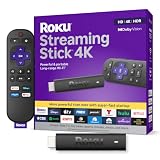
Roku Streaming Stick 4K
Streaming
$44.99
Amazon price when we checked on Oct 9, 2026
Check today's price on Amazon(opens Amazon in a new tab)
GL.iNet GL-MT6000 Flint 2
Travel Router
$169.99
Amazon price when we checked on Oct 9, 2026
Check today's price on Amazon(opens Amazon in a new tab)Data monitoring and management
Tracking usage in the Starlink app
The Starlink app shows daily and monthly data usage on the main dashboard. Check it weekly to stay within your plan's limits.
Setting device-level limits
If you use a travel router with OpenWrt:
- Set per-device bandwidth limits to prevent one device from consuming the entire connection
- Block automatic app updates on mobile devices during daytime hours
- Schedule large downloads (OS updates, game patches) for nighttime or shore power stops
Data usage cheat sheet
| Activity | Data per hour |
|---|---|
| Web browsing | 0.05–0.2 GB |
| 0.01 GB | |
| Social media scrolling | 0.1–0.3 GB |
| Music streaming | 0.04–0.15 GB |
| Video call (Zoom) | 0.5–1.5 GB |
| Streaming 720p | 1.5 GB |
| Streaming 1080p | 3 GB |
| Streaming 4K | 7 GB |
| Cloud gaming 1080p | 6 GB |
| Online gaming (console/PC) | 0.04–0.1 GB |
Recommended entertainment hardware for your RV
| Item | Purpose | Price range |
|---|---|---|
| Amazon Fire TV Stick 4K Max | Streaming on RV TV | $43–$52 |
| Roku Streaming Stick 4K | Alternative streaming device (Dolby Vision, voice remote) | $55–$67 |
| Xbox controller (Bluetooth) | Cloud gaming input | $40–$60 |
| 10" tablet (iPad or Fire HD) | Personal streaming, downloads | $100–$330 |
| Bluetooth speaker | Music and podcasts | $25–$80 |
| HDMI cable (6 ft) | Connect laptop to RV TV | $8–$12 |
What to do next
Set your streaming quality to match your Starlink plan, download content whenever you are on unlimited WiFi, and use a travel router with QoS if multiple people share the connection. This combination gives you a home-like entertainment experience from any campsite.
- Manage your data costs in Starlink RV plans and pricing
- Fix buffering from obstructions in Starlink RV obstruction tips
- Extend WiFi to your outdoor screen in How to extend Starlink WiFi range in your RV
Related reading
- Starlink RV plans and pricing
- Starlink RV obstruction tips
- How to extend Starlink WiFi range in your RV
- Best travel routers for Starlink RV
Affiliate disclosure
This page may include affiliate links. If you purchase through them, we may earn a commission at no extra cost to you.